Casi d'uso



 Accedi








Usare google sheets per inviare sms

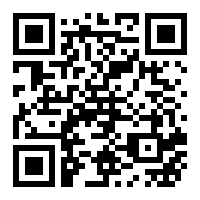
 Scarica l'ultima versione dell'applicazione
Opzione 1: usa il modello già pronto
Consigliato se vuoi la configurazione più rapida possibile.
1. Apri il foglio Google condiviso
Apri il modello e salva una tua copia su Google Drive.
2. Vai al foglio config
Compila api_token, device_id e sim.
3. Aggiungi destinatari e messaggi
Torna al foglio principale e inserisci numeri di telefono e testi dei messaggi.
4. Aggiorna ed esegui
Ricarica la pagina, apri il menu SMS Gateway ed esegui la funzione di invio.
Opzione 2: aggiungi lo script manualmente
Consigliato se vuoi il pieno controllo sulla struttura del tuo foglio.
1. Crea un nuovo foglio Google
Crea un foglio di calcolo vuoto in Google Sheets.
2. Aggiungi i fogli necessari
Crea il foglio principale e un altro foglio chiamato esattamente config.
3. Apri Estensioni → Apps Script
Elimina il codice predefinito e incolla lo script del repository in Code.gs.
4. Salva, autorizza e usa
Salva il progetto, aggiorna il foglio, autorizza lo script e inizia a inviare messaggi.
Come configurarlo
Un flusso semplice per iniziare a inviare SMS da Google Sheets.
1
Ottieni il file
Apri il modello o crea da zero il tuo foglio di calcolo.
2
Aggiungi la configurazione
Inserisci token, device_id e sim nel foglio config.
3
Autorizza lo script
Alla prima esecuzione Google ti chiederà di concedere le autorizzazioni.
4
Avvia l'invio
Usa il menu personalizzato SMS Gateway per inviare messaggi dal foglio.
Struttura richiesta del foglio di calcolo
Usa le seguenti colonne nel foglio principale e nel foglio config.
Foglio principale
phone | name | message | timetosend | customerid | urgent | status | response | sms_id
Foglio config
key        | value
api_token  | your_token_here
device_id  | 12345
sim        | 0
Valori SIM e canale
Scegli quale canale verrà usato per l'invio.
0 — Slot SIM 0 per SMS
1 — Slot SIM 1 per SMS
2 — WhatsApp Business
3 — WhatsApp personale
4 — Canale RCS 1
5 — Canale RCS 2
Note importanti
Alcune cose da controllare prima di usare il foglio in produzione.
Formato della colonna telefono
Imposta il formato della colonna telefono su Testo normale così il segno + viene mantenuto.
Non condividere il tuo token
Ogni utente dovrebbe lavorare con una propria copia privata del foglio e con i propri valori di configurazione.
La configurazione viene caricata dal foglio
Lo script non inserisce api_token, device_id o sim direttamente nel codice.
Flusso consigliato
Crea la tua copia del modello, compila il foglio config e gestisci tutti i messaggi dal foglio principale.
Pronto a provare?
Salva la tua copia del modello Google Sheets e inizia a inviare messaggi direttamente dal browser.
Funziona nel browser ed è una comoda alternativa alle macro di Excel.
Esempio di riga di dati
Esempio di una riga di messaggio nel foglio principale.
+4917660188224 | John Doe | Hello John, this is a test message | 2026-04-08 18:00:00 | 1001 | 1 | | |
Domande e risposte
Le cose più importanti da sapere prima di iniziare.
Videotutorial
Guarda passo passo come configurare Google Sheets e iniziare a inviare SMS.
SmsGateWay24 - Tutorial su YouTube
Iscriviti e metti mi piace al video 😁
Pronto a iniziare?
Apri il modello Google Sheets, aggiungi la tua configurazione e invia la prima campagna SMS direttamente dal browser.
Funziona su qualsiasi piattaforma: Windows, macOS e Linux.