




 Log in








Integrate smsgateway24 with your amocrm

 Download the latest version of the application

How it works
A simple way to connect SmsGateway24 with your AmoCRM or KommoCRM workspace.
1
Install the widget
Connect the SmsGateway24 widget to your CRM account in the standard way.
2
Open the deal or contact
Use the CRM interface to open the card where you want to send a message.
3
Send manually or via pipeline
Messages can be sent directly by the manager or automatically from pipeline automation.
Step-by-step screenshots
See how the installation and sending process looks inside AmoCRM and KommoCRM.
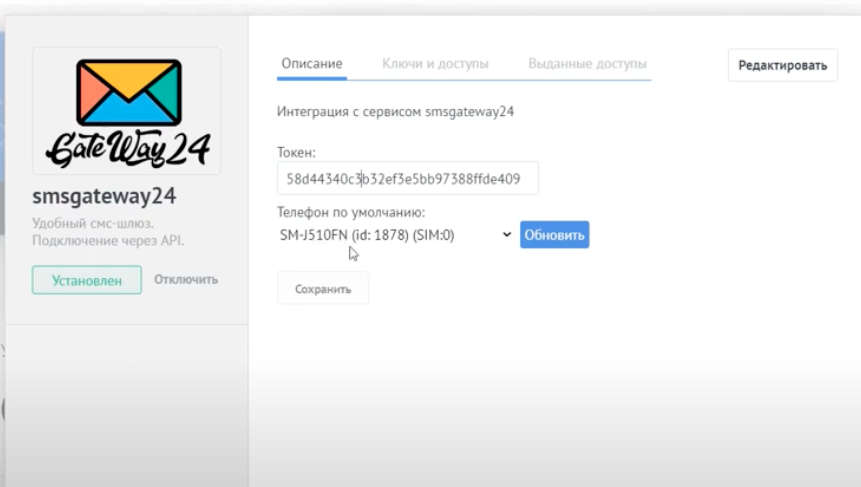
Install in AmoCRM
Connect the widget in the AmoCRM marketplace interface.

Install in KommoCRM
Use the same widget flow in KommoCRM.
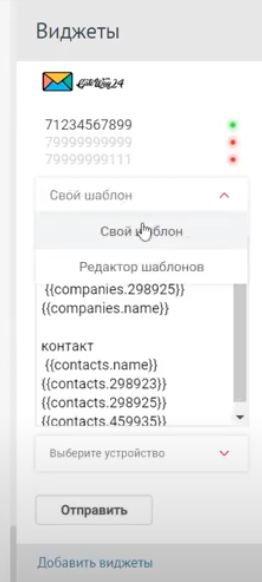
Send from AmoCRM
Send messages directly from the CRM interface.

Send from KommoCRM
Use the same workflow inside KommoCRM cards.
Why teams use this integration
Useful for sales departments, client support and automated CRM workflows.
SMS inside the CRM
Managers can work without switching between tools.
Pipeline automation
Launch automatic SMS on selected deal stages.
Fast setup
Install the widget and start with minimal configuration.
Uses your own Android device
Messages are sent via your connected device and SIM.
Question and answer
The most common question about the AmoCRM / KommoCRM integration.
What should I do if I do not see the required device in AmoCRM or KommoCRM?
Contact us and we will help you connect the correct device and check your integration settings.
We are almost always in touch via Email, Telegram or Whatsapp.



Good to know
You can use this integration both for manual sending by managers and for fully automated SMS scenarios inside CRM pipelines.
Video tutorial
Watch how to install the widget and send SMS from AmoCRM or KommoCRM.
SmsGateWay24 - Youtube Tutorials
Subscribe and like the video 😁
Ready to connect your CRM?
Install the widget and start sending SMS to clients directly from your CRM workspace.
Manual sending and pipeline automation in one integration.