

Use Cases



 Log in








Using excel to send sms

 Download the latest version of the application
How it works
Three simple steps to launch SMS sending from Excel.
1
Download the file
Use the prepared Excel template with built-in macros for message sending.
Download
2
Configure connection
Open the configuration tab and enter device ID, token and SIM slot number.
3
Send SMS
Add phone numbers, write your message and start sending through your Android phone.
Step-by-step screenshots
A quick visual guide to help you configure the Excel file correctly.
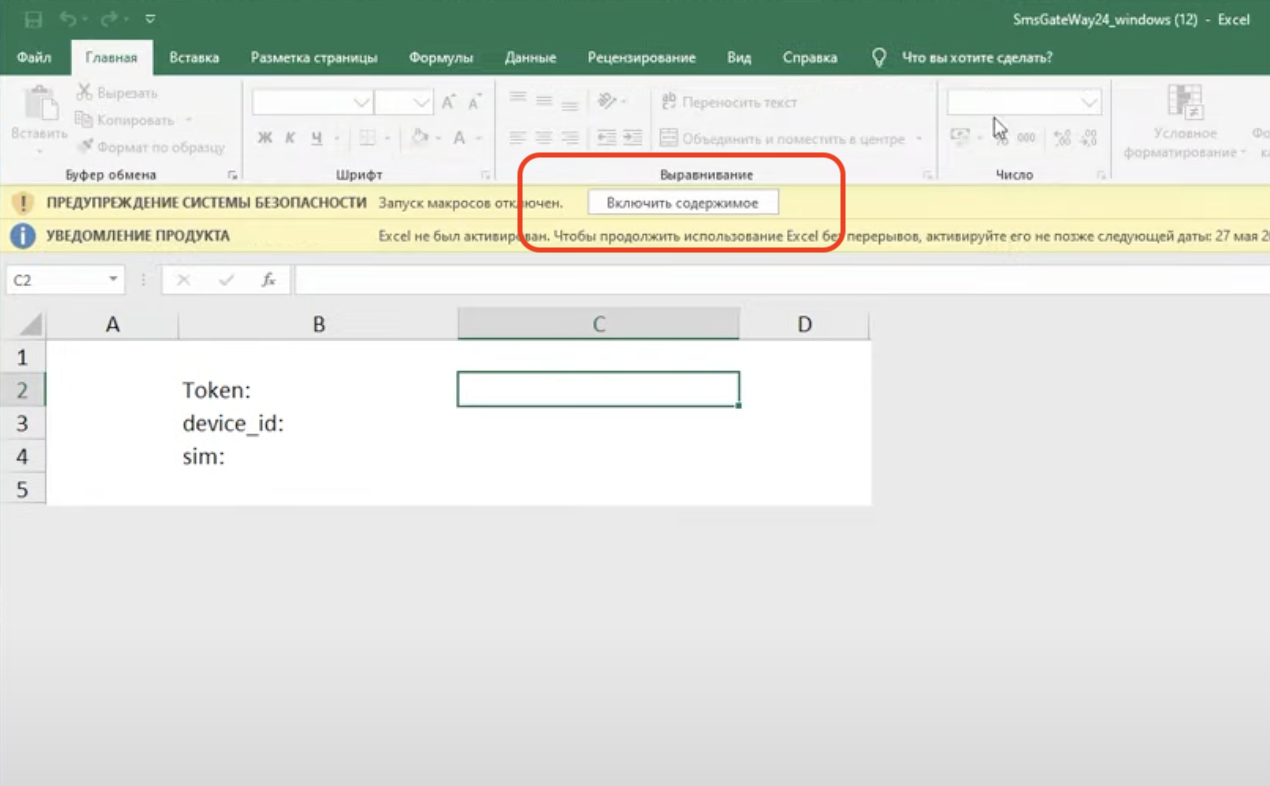
Enable macros
Allow macro execution when opening the file.
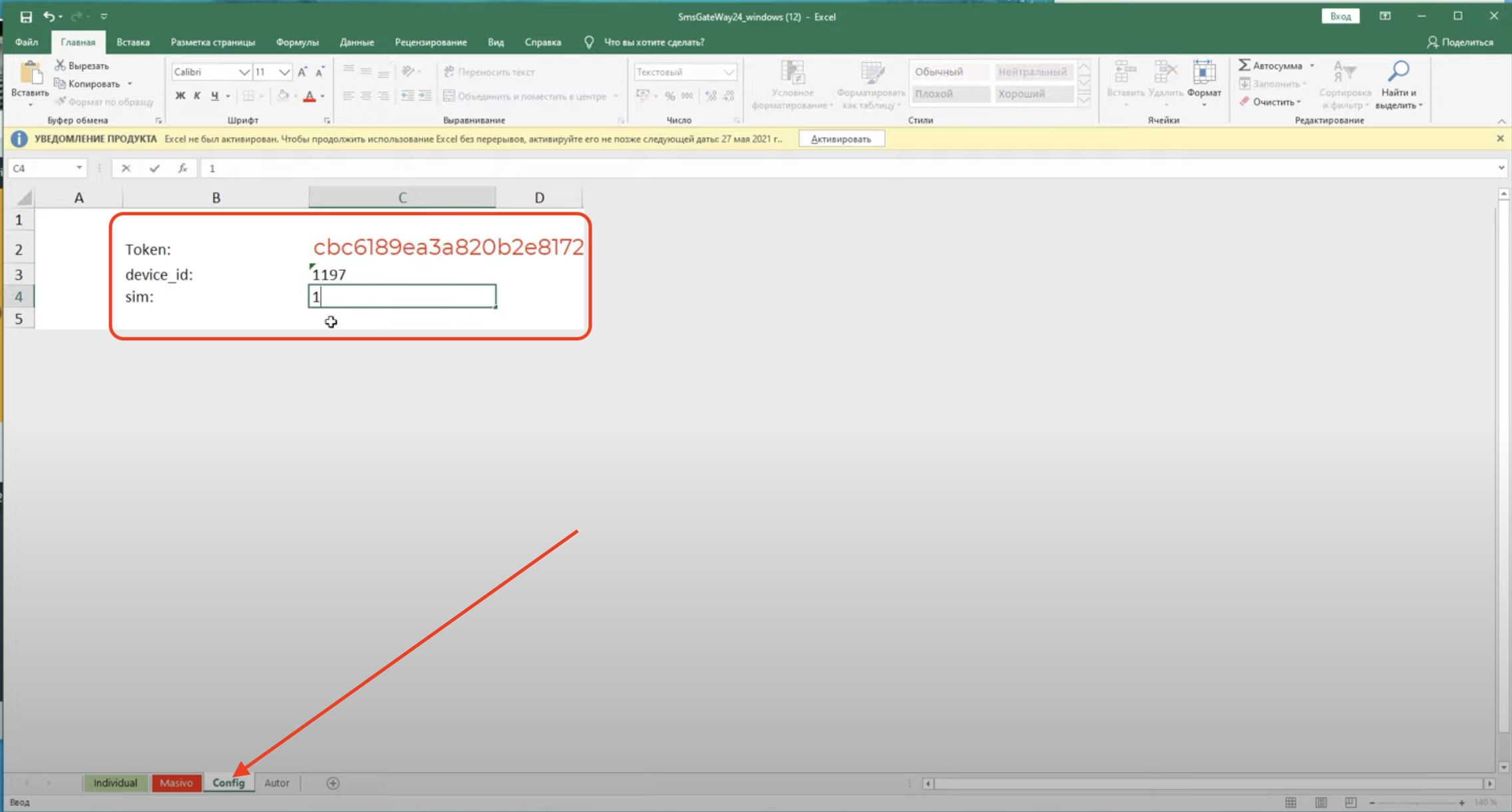
Fill in configuration
Enter device ID, token and choose the SIM slot used for sending.
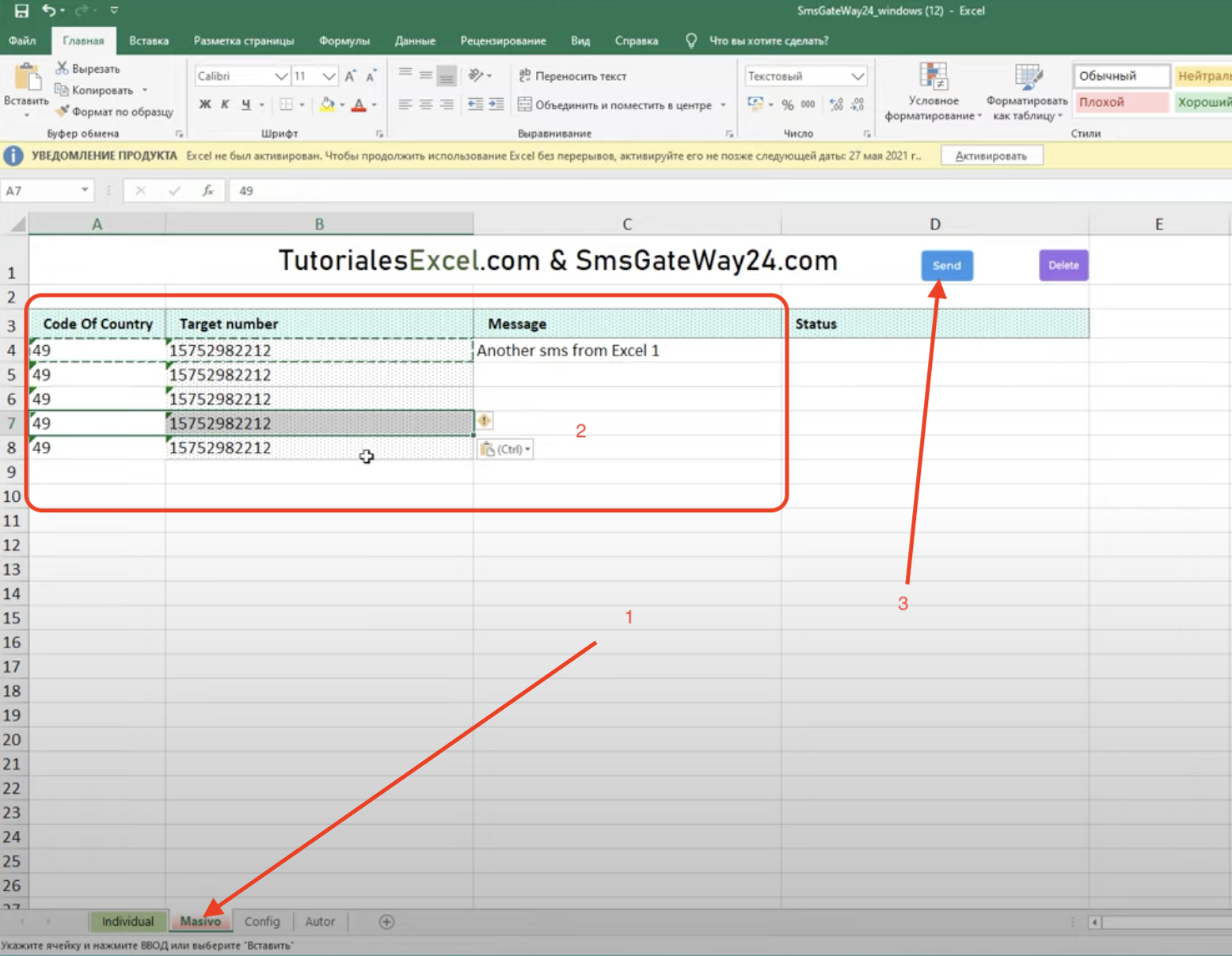
Send messages
Add recipients and message text, then trigger sending.
Why use Excel for SMS sending
A practical option for teams that want fast bulk messaging without development work.
No coding required
Work directly in a familiar Excel environment.
Fast bulk sending
Prepare many recipients and messages in one table.
Easy onboarding
New users can start quickly without learning APIs.
Works with Android device
Messages are sent through your connected phone and SIM card.
Question and answer
The most common question about Excel sending.
Good to know
Excel sending is especially useful for non-technical teams, sales managers and operators who already work with spreadsheets every day.
Video tutorial
Watch how to configure the Excel file and send SMS step by step.
SmsGateWay24 - Youtube Tutorials
Subscribe and like the video 😁
Ready to try?
Download the Excel template, connect your phone and launch your first SMS campaign in minutes.
Download Excel file
Simple workflow. Familiar interface. Real SMS sending.