



 Log in








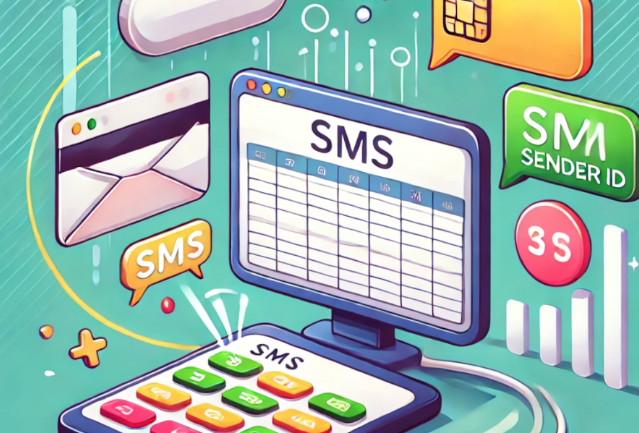
How to Send SMS from Excel Using SIM Card and Sender ID: Step-by-Step Guide
Video Tutorial: Sending SMS from Excel
Overview
This guide explains how to send SMS messages directly from Microsoft Excel — both using your Android phone's SIM card and through a Sender ID. This method is useful for businesses that manage contact lists in spreadsheets and want to send bulk SMS without learning a complex API integration.
Part 1: Sending SMS via SIM Card from Excel
Step 1: Register and Set Up SmsGateWay24
First, create a free account at smsgateway24.com. Then download the SmsGateWay24 Android app and install it on your phone. After logging in, your device will appear on the "My Devices" page. Before sending, link a subscription (or use the free trial period) to your device.
Step 2: Download the Excel Template File
Download the SmsGateWay24 Excel file from the dashboard. When you first open it in Excel, you will see a warning about macros. You need to enable them:
- Click Enable Editing at the top of the screen.
- Right-click on the toolbar and select Customize Ribbon.
- Check the box next to Developer and click OK.
- In the Developer menu, click Macro Security.
- Select Enable VBA Macros.
- Go to Trusted Locations, click Add New Location, create a new folder, move the Excel file there, and reopen it.
Step 3: Configure the Excel File
Go to the Config sheet. Fill in three values:
- Token: Your API token from the SmsGateWay24 dashboard (Tokens section).
- Device ID: The ID of the device you want to send from (found in the Device List).
- SIM slot: The SIM card slot number — either 0 or 1 (for dual-SIM phones).
Step 4: Send an Individual SMS
Go to the Individual sheet. Enter the recipient's phone number in international format (with country code, without the "+" sign). Click the Send button. You can verify the message was sent by going to the SmsGateWay24 dashboard and checking the SMS list for your device.
Step 5: Send Bulk SMS to Multiple Recipients
Go to the Masivo sheet. Enter your contact list with phone numbers and the message text. Click the send button. The messages will be placed in the device's sending queue and dispatched from your SIM card in sequence.
Important: Review the SmsGateWay24 guidelines on sending volumes to avoid having your SIM card flagged by the mobile carrier. Sending too many messages in a short time can trigger spam filters.
Part 2: Sending SMS via Sender ID from Excel
What Is a Sender ID
A Sender ID replaces the sender's phone number with a custom alphanumeric name (e.g., "MyBusiness"). Recipients see your brand name instead of a phone number. Sender ID requires a separate subscription and carrier approval, but provides a more professional appearance and higher trust from recipients.
Step 1: Purchase a Sender ID Subscription
Go to the subscriptions page and purchase a subscription specifically for Sender ID (note: a device subscription does not cover Sender ID). There is no trial period for Sender ID.
Step 2: Request a Sender ID
- Go to the My Sender ID page.
- Fill in your company information.
- Click Request Sender ID.
- Specify the sender name, message type, target country, and a sample message body.
- Wait for approval (typically 1–3 business days depending on the country).
Step 3: Create Message Templates
For Sender ID, you can only send pre-approved message templates (not free-form text). Create one or more templates for your approved Sender ID from the dashboard. Each template gets a unique template ID.
Step 4: Configure Excel for Sender ID
Go back to the Config sheet. Clear the device parameters and instead enter:
- Your Sender ID
- Your Template ID
- Optionally, a webhook URL (e.g., from webhook.site) to receive delivery status updates
Step 5: Send SMS via Sender ID
Go to the Masivo sheet, enter your recipients' phone numbers (you don't need to fill the "Body" field — the message body comes from the template), and click Send. Recipients will receive the SMS with your Sender ID as the displayed sender name, and delivery status webhooks will be posted to your configured URL.
Tips for Successful SMS Sending from Excel
- Always use international phone number format (country code + number, no "+" sign).
- Test with a single message to your own number before running a bulk send.
- For SIM card sending, keep the Android device plugged in and connected to Wi-Fi during large bulk sends.
- Check delivery reports in the SmsGateWay24 dashboard after each campaign.
Video Tutorials
View all SMS gateway tutorials