Use Cases



 Log in








04.05.2026
news
Send and Receive WhatsApp Messages via SmsGateWay24 — Now Available in App Version 13
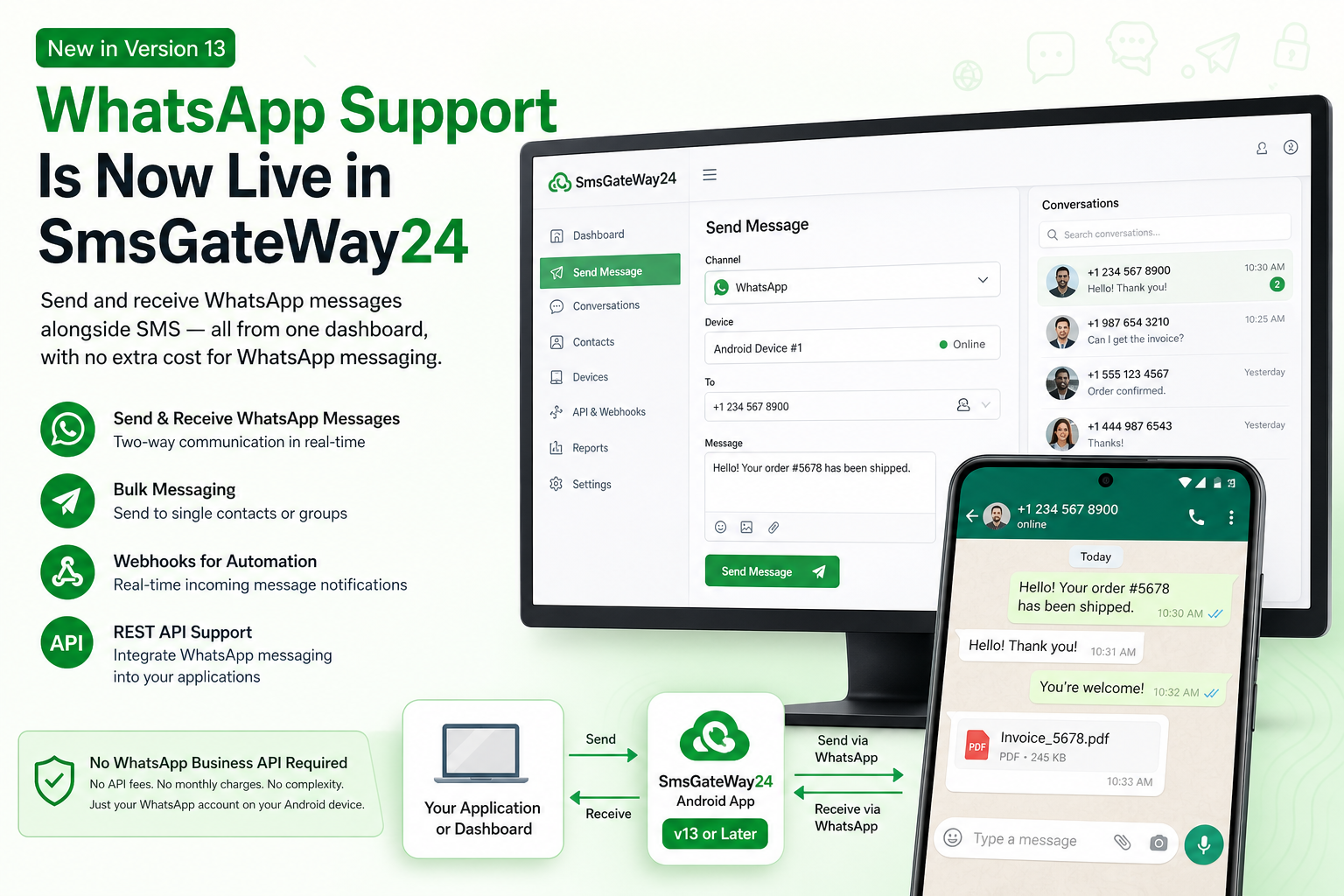
WhatsApp Support Is Now Live in SmsGateWay24
Starting with version 13 of the SmsGateWay24 Android app, you can now send and receive WhatsApp messages directly through your Android device — alongside SMS — all managed from the same web dashboard. This turns SmsGateWay24 into a true multi-channel messaging platform without any additional cost for WhatsApp messaging.
No WhatsApp Business API account is needed. No monthly API fees. No complicated onboarding. Your existing WhatsApp account on your Android phone is all you need.
How WhatsApp Integration Works
Your Phone as a WhatsApp Gateway
The SmsGateWay24 app connects to the WhatsApp account already installed on your Android device. When you send a WhatsApp message through the SmsGateWay24 dashboard or API, the app forwards the task to WhatsApp on your phone, which delivers the message to the recipient through WhatsApp's infrastructure — exactly as if you had sent it manually from the phone.
Incoming WhatsApp messages are intercepted by the SmsGateWay24 app and forwarded to your dashboard and, if configured, to your server via webhook. This makes two-way WhatsApp communication possible directly from your own systems.
No WhatsApp Business API Required
The official WhatsApp Business API requires an approved Meta Business account, is only accessible through BSPs (Business Solution Providers), and charges per message. SmsGateWay24's WhatsApp feature bypasses all of this by working at the device level — your personal or business WhatsApp account handles the messaging, not a third-party API.
This approach is ideal for small and medium businesses, individual entrepreneurs, and developers who want WhatsApp capabilities without the cost and complexity of the official Business API.
What You Can Do with WhatsApp via SmsGateWay24
Send Individual and Bulk WhatsApp Messages
Send WhatsApp messages to individual contacts or to a list of recipients. From the dashboard, compose a message, select the device, and choose the recipients. You can also use the API to send programmatic WhatsApp messages from your backend systems — perfect for automated notifications, alerts, or customer communication flows.
Receive WhatsApp Messages and Manage Conversations
When a contact replies to your WhatsApp message or sends a new message to your number, it appears in the SmsGateWay24 dashboard alongside your SMS conversations. You can view the full conversation history, reply from the dashboard, and assign conversations to team members (if you use multiple accounts).
WhatsApp Webhooks for Automation
Configure a webhook to receive real-time notifications on your server whenever a new WhatsApp message arrives. The webhook payload includes the sender's number, message text, timestamp, and media information (for media messages). This allows you to build automated WhatsApp chatbots, CRM integrations, or support ticket systems.
Send WhatsApp Messages via REST API
The SmsGateWay24 REST API now includes WhatsApp endpoints. Sending a WhatsApp message is as simple as:
POST /api/v1/whatsapp/send
Authorization: Bearer YOUR_TOKEN

{
  "phone": "+1234567890",
  "message": "Hello! Your order #5678 has been shipped.",
  "device_id": "YOUR_DEVICE_ID"
}
The API returns a message ID for tracking. You can check delivery status or receive it via webhook.
Requirements for WhatsApp Messaging
App Version 13 or Later
WhatsApp support is only available starting from SmsGateWay24 app version 13. If you are running an older version, download the latest APK from the SmsGateWay24 dashboard and update your device.
WhatsApp Installed and Active on the Device
The Android device running SmsGateWay24 must have WhatsApp installed and an active WhatsApp account linked (with a phone number). WhatsApp must be set up and functional — the SmsGateWay24 app integrates with the existing WhatsApp session on the device.
Stable Internet Connection
WhatsApp messages are delivered over the internet (unlike SMS which uses the cellular network directly). The Android device must have a stable Wi-Fi or mobile data connection at all times for WhatsApp messaging to work reliably.
Device Must Stay Online
The SmsGateWay24 app must remain active in the background. Make sure Android battery optimization is disabled for SmsGateWay24. If the app is killed by the system, WhatsApp messages will not be processed until the app is reopened.
WhatsApp vs SMS: When to Use Which
Use WhatsApp When
- Your customers primarily communicate via WhatsApp (common in Latin America, Europe, the Middle East, and many Asian markets).
- You want to send rich content: images, documents, or formatted text.
- You need read receipts and two-way conversation support.
- The recipient has WhatsApp installed and actively uses it.
Use SMS When
- You need guaranteed delivery regardless of whether the recipient has internet or a specific app.
- You are sending OTPs, verification codes, or critical alerts that must reach any phone.
- The recipient may not have WhatsApp or their WhatsApp may be inactive.
- You are targeting markets where WhatsApp adoption is lower (e.g., parts of North America).
Use Both Channels Together
The best strategy is often to attempt WhatsApp delivery first and fall back to SMS if the message is not delivered within a set time. With SmsGateWay24 managing both channels, you can implement this fallback logic in your application using the delivery webhooks.
How to Enable WhatsApp in Your SmsGateWay24 Account
Step 1: Update the App to Version 13
Download the latest SmsGateWay24 APK from the download page in your dashboard. Install it over the existing version — your settings and API tokens are preserved. After installation, the app will restart and reconnect automatically.
Step 2: Make Sure WhatsApp Is Active on the Device
Open WhatsApp on your Android device and verify it is working normally. Send a test message to yourself or a contact to confirm the session is active and messages are sending.
Step 3: Enable WhatsApp in Device Settings
In the SmsGateWay24 app, go to the device settings and enable WhatsApp message forwarding. The app will request any additional permissions required to interact with WhatsApp on the device.
Step 4: Test from the Dashboard
In the SmsGateWay24 web dashboard, go to the Send Message section, select the channel as "WhatsApp", choose your device, enter a phone number, and send a test message. Verify it is delivered to the recipient's WhatsApp.
Privacy and Compliance Considerations
Since WhatsApp messaging through SmsGateWay24 uses your personal or business WhatsApp account, the same terms of service that apply to WhatsApp apply here. Only send WhatsApp messages to contacts who have consented to receive messages from you. Sending bulk unsolicited WhatsApp messages can result in your WhatsApp account being restricted or banned by WhatsApp.
For high-volume commercial messaging, the official WhatsApp Business API may be more appropriate. SmsGateWay24's WhatsApp feature is best suited for moderate volumes with contacts who already know your business.
Getting Started
Update your SmsGateWay24 app to version 13 today and start exploring WhatsApp messaging alongside SMS from a single platform. If you have any questions or need help with the setup, contact our support team.
Video Tutorials
View all SMS gateway tutorials
How to Send SMS from Excel Using SIM Card and Sender ID: Step-by-Step Guide
Learn how to easily send SMS f...
How to use Webhooks
1. When an SMS receives any de...
How to Send SMS Messages to Your Clients Using a Regular Phone
In this article, you will lear...
Send and Receive WhatsApp Messages via SmsGateWay24 — Now Available in App Version 13
SmsGateWay24 app version 13 br...
Auto-Translation in Chats: Break the Language Barrier with SmsGateWay24
Your customer writes in Spanis...
SMSGateway24 — new version 13.0.2 is available
SMSGateway24 — new version 13....
New app version is released (12.1.22)
We are pleased to announce the...